
Video #07 · 1:40
How to add a chatbot to your website with one HTML code
Once your chatbot has read your website, one short piece of code puts the chat on your pages. This guide shows where to find it, which version to copy, and where it goes. Then a visitor on aparexam.com, our own product website, asks a question.
What you need
- A website already added and read in Apar Chatbot
- A way to edit your website's pages, or your site builder's custom code setting
Step by step
1Open Embed Codes and pick your website
Embed Codes shows the code for each of your websites. Pick yours, and it shows how many pages it has read.
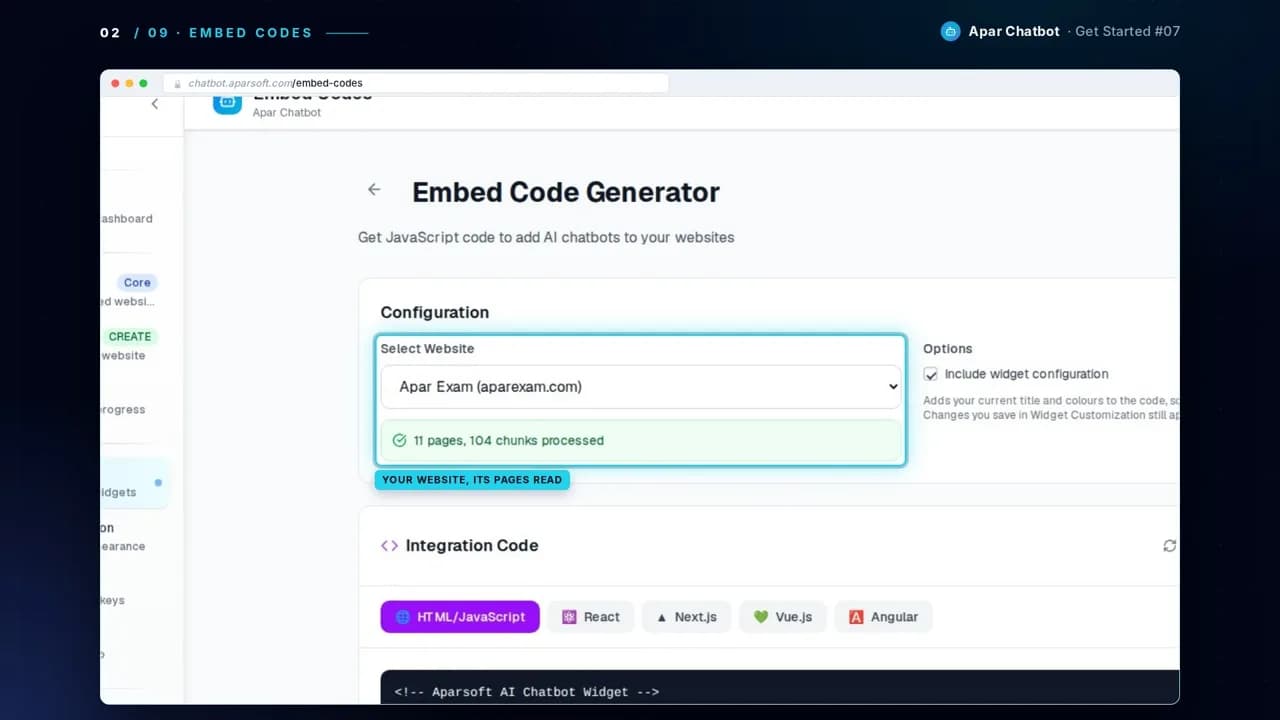
2Find the HTML code
The HTML/JavaScript tab has the code for most websites: one script tag, with your website's key in it.
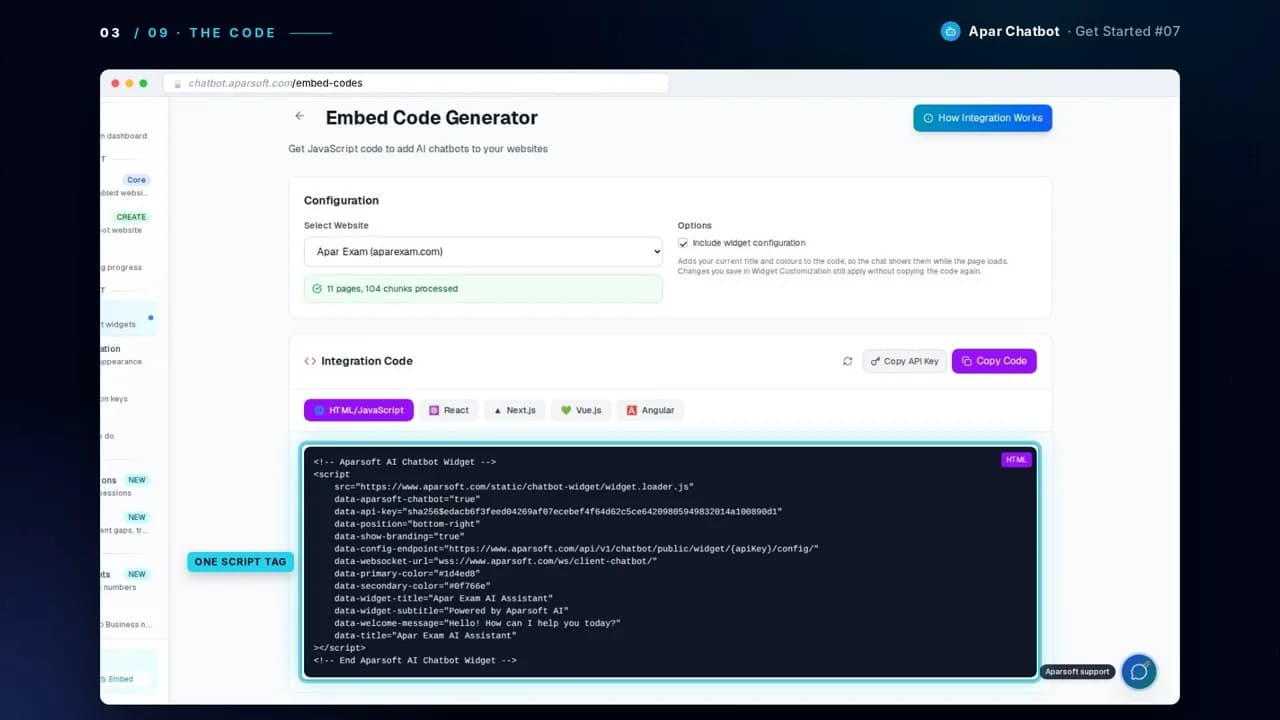
3Choose the shortest code
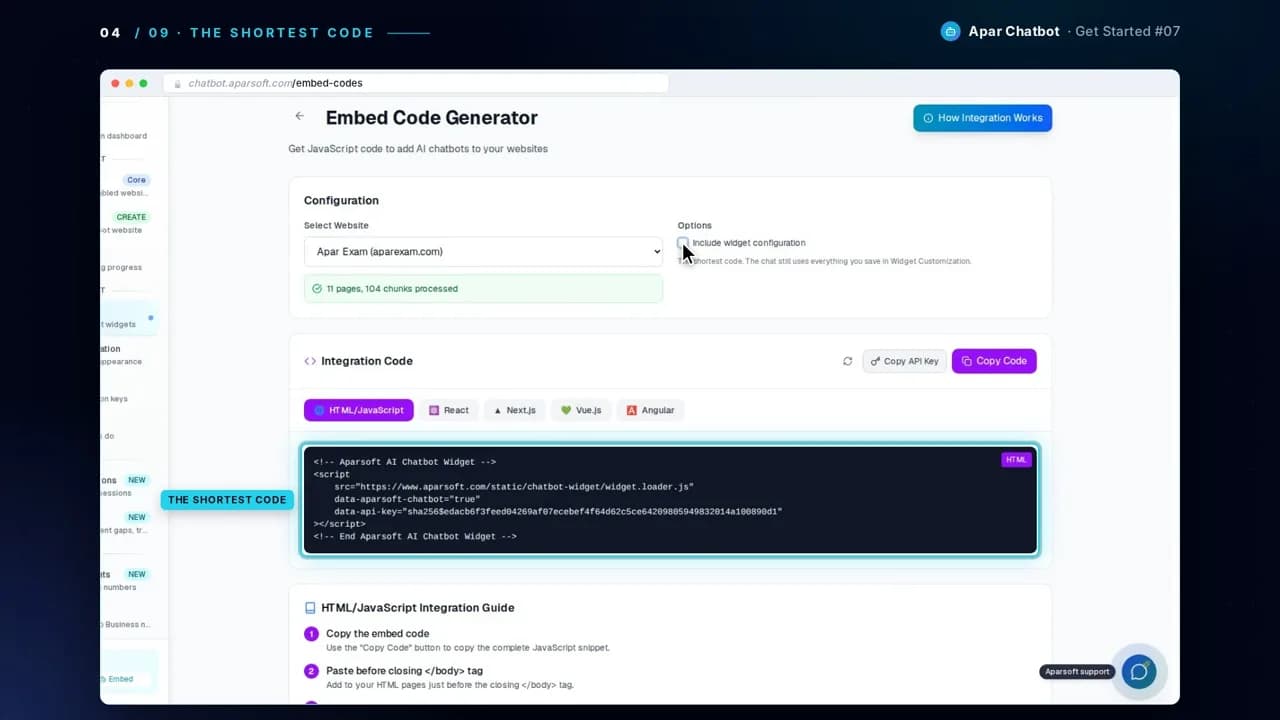
Untick Include widget configuration for the shortest code. Your chat still uses everything you set in Widget Customization. It looks like this, with your own key in place of YOUR_WEBSITE_KEY:
<!-- Aparsoft AI Chatbot Widget -->
<script
    src="https://www.aparsoft.com/static/chatbot-widget/widget.loader.js"
    data-aparsoft-chatbot="true"
    data-api-key="YOUR_WEBSITE_KEY"
></script>
<!-- End Aparsoft AI Chatbot Widget -->
Copy the code from Embed Codes, not from this page: there your website's key is already in it.
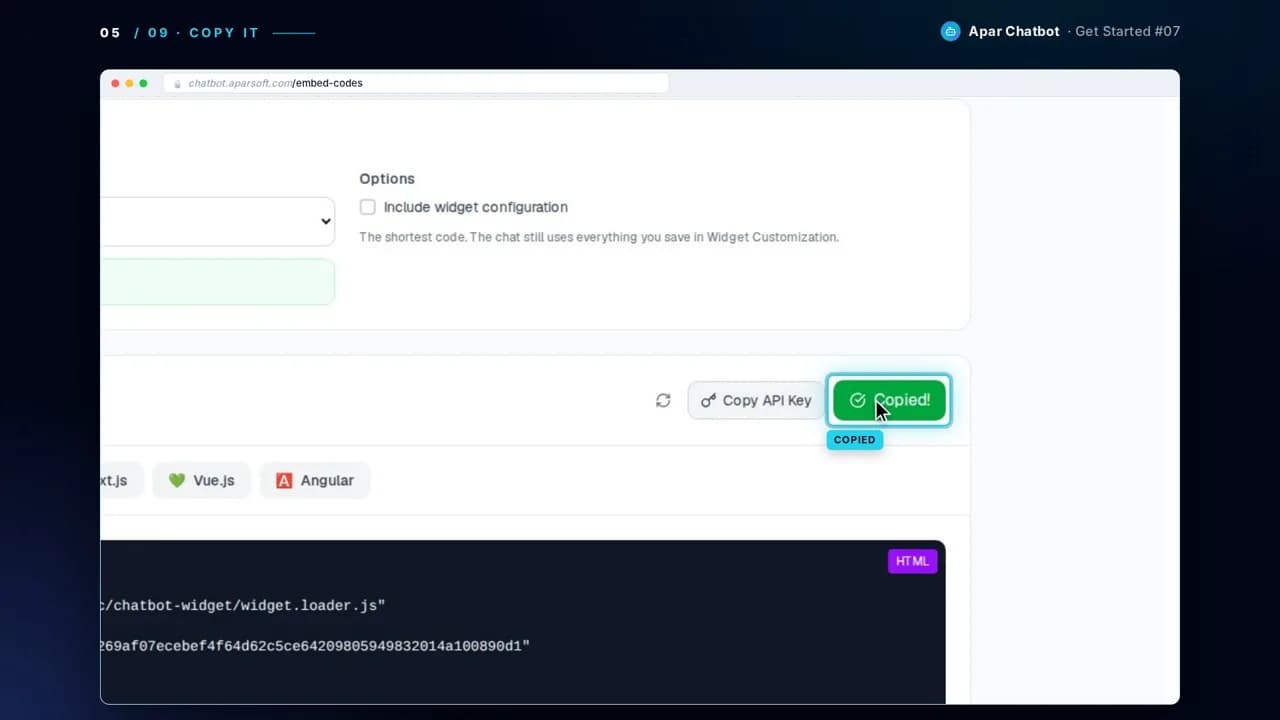
4Press Copy Code
The code is now ready to paste.
5Paste it before the closing body tag
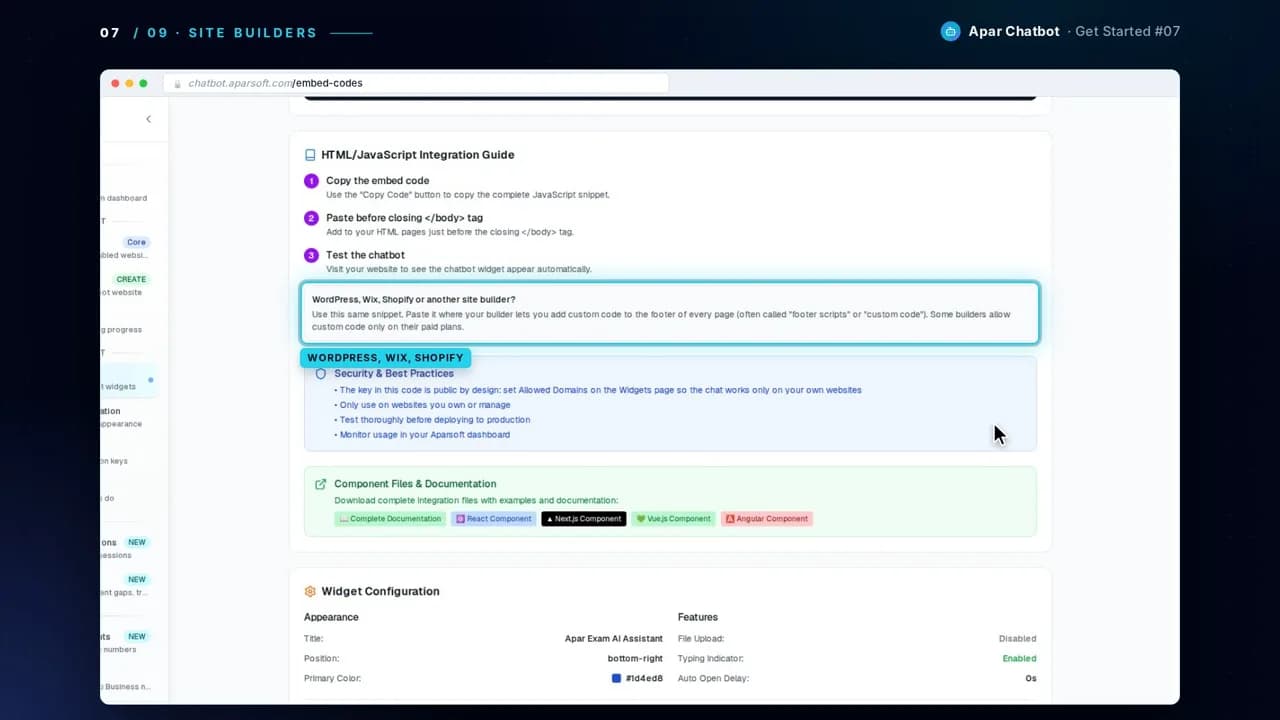
Paste it into every page of your website, just before the closing </body> tag. If your pages share one template or footer, paste it there once.
... <!-- Paste the chatbot code here --> </body> </html>6On WordPress, Wix or Shopify
Paste the same code where your site builder lets you add your own code to the footer of every page, often called footer scripts or custom code. Some builders allow custom code only on their paid plans.
7Open your website
The chat button is there for every visitor. On aparexam.com, a visitor asks whether Set B is free, and the chatbot answers from the website's pages.
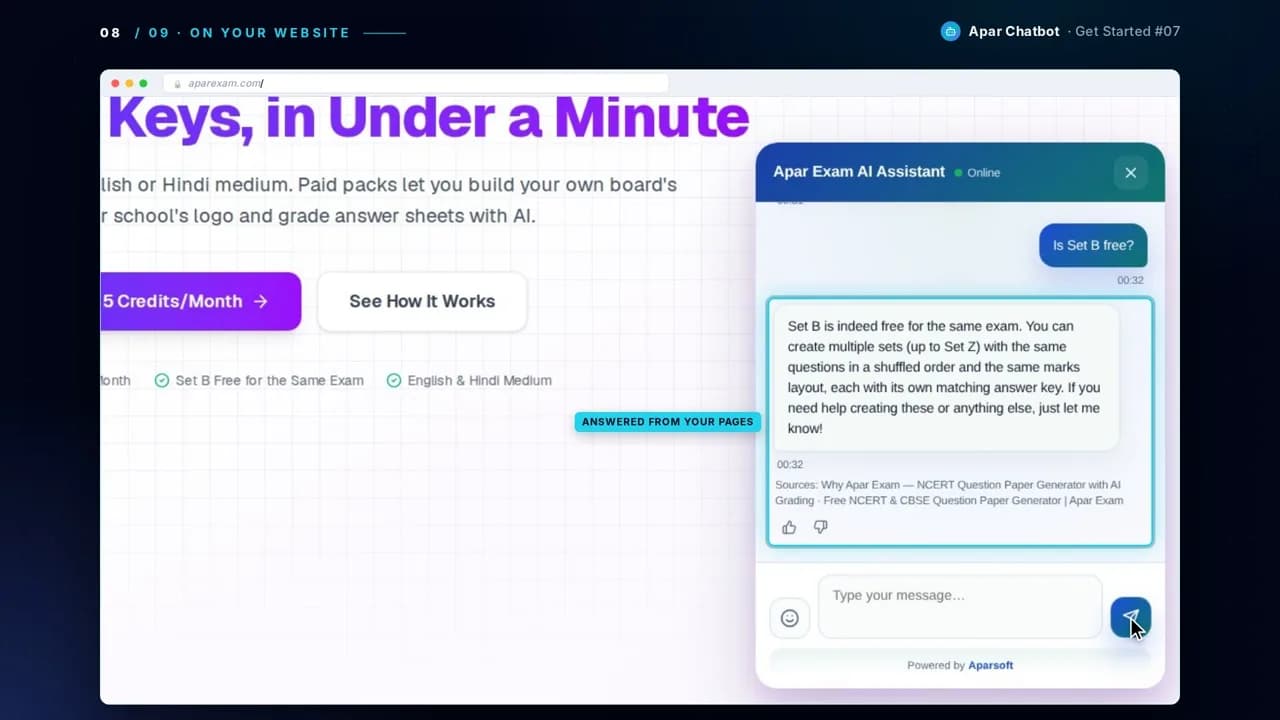
The answer in the video, word for word
A visitor on aparexam.com
Is Set B free?
Sources: Why Apar Exam — NCERT Question Paper Generator with AI Grading · Free NCERT & CBSE Question Paper Generator | Apar Exam
Questions
Where exactly does the code go?
Just before the closing </body> tag, on every page where you want the chat. If your website uses one shared footer or template, paste it there once and it shows on every page.
Is the key in the code a secret?
No. The key is public by design, because it sits in your web page. To make sure the chat works only on your own websites, set Allowed Domains on the Widgets page.
Should I tick Include widget configuration?
You don't need to. With it unticked you get the shortest code, and the chat still uses everything you save in Widget Customization.
My website is built with React, Next.js, Vue or Angular. Is this the right code?
Embed Codes has a ready file for each of those too. The next guide shows where each one goes.
Next guide
How to add a chatbot to React, Next.js, Vue or Angular