
Video #01 · 2:02
How to add an AI chatbot to your website
This guide follows the whole set-up once, on aparexam.com, our own product website. You add the website, the chatbot reads its pages, you test it, give it your colours and paste one short code. Then a visitor asks a question, and the answer comes from the website's own pages, with the sources underneath.
What you need
- A website you own or manage
- An Apar Chatbot account: start free at chatbot.aparsoft.com, no card needed
Step by step
1Add your website
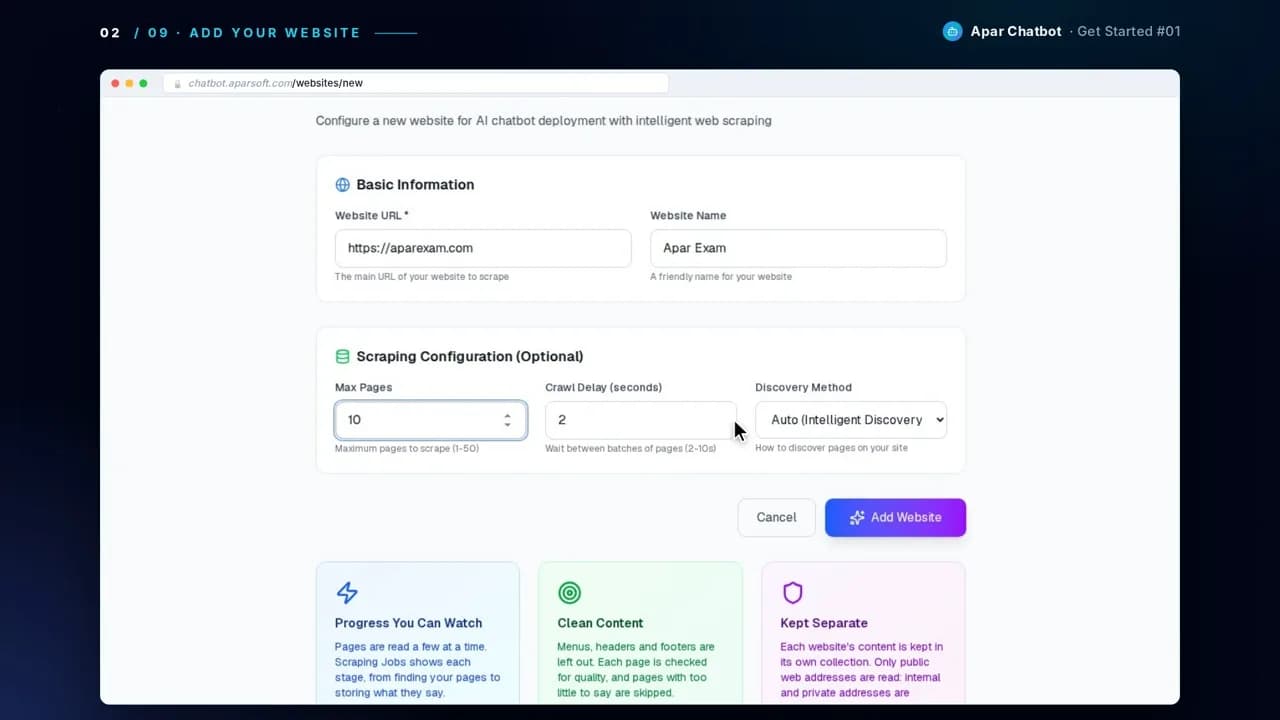
Open Add Website. Type your website's address and a name for it. Under Scraping Configuration you choose how many pages it reads and how it finds them. We read 10 pages of aparexam.com, taken from its sitemap. Press Add Website, and it starts reading the pages straight away.
2Let it read your pages
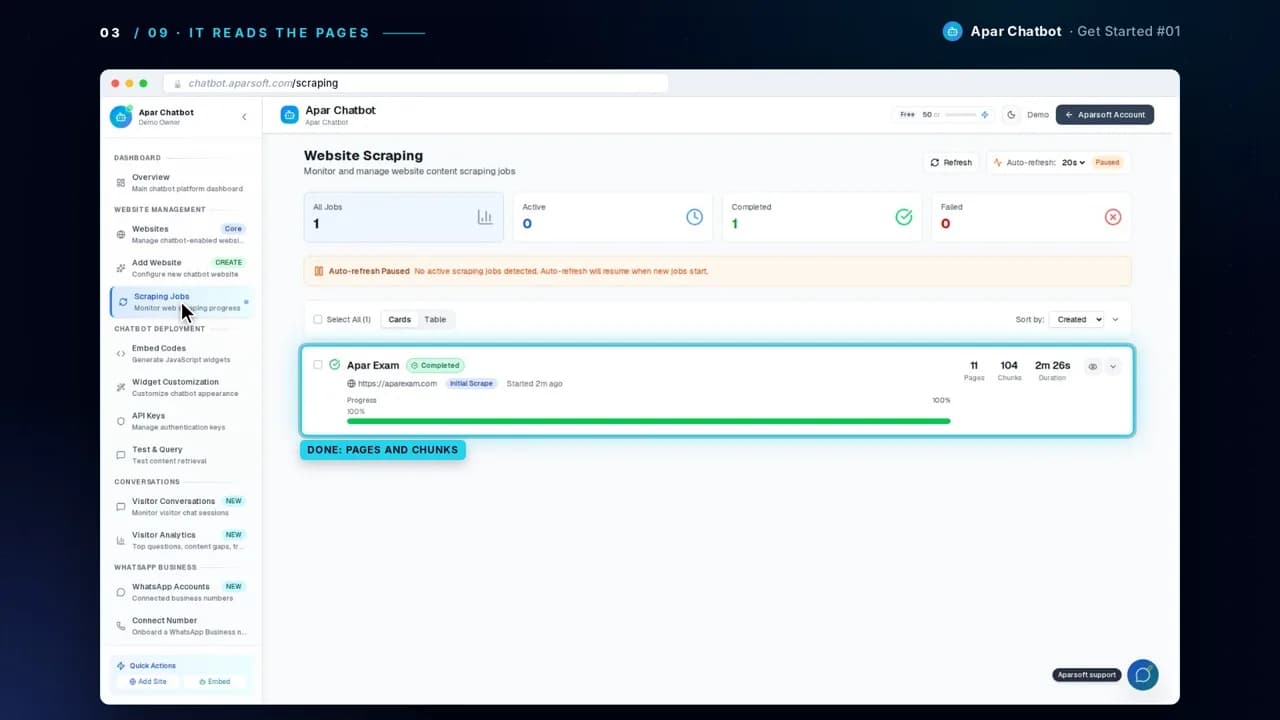
Scraping Jobs shows each stage: it finds the pages, reads them, and stores what they say. When the job says Completed, your pages are knowledge it can answer from.
3Test it before anyone sees it
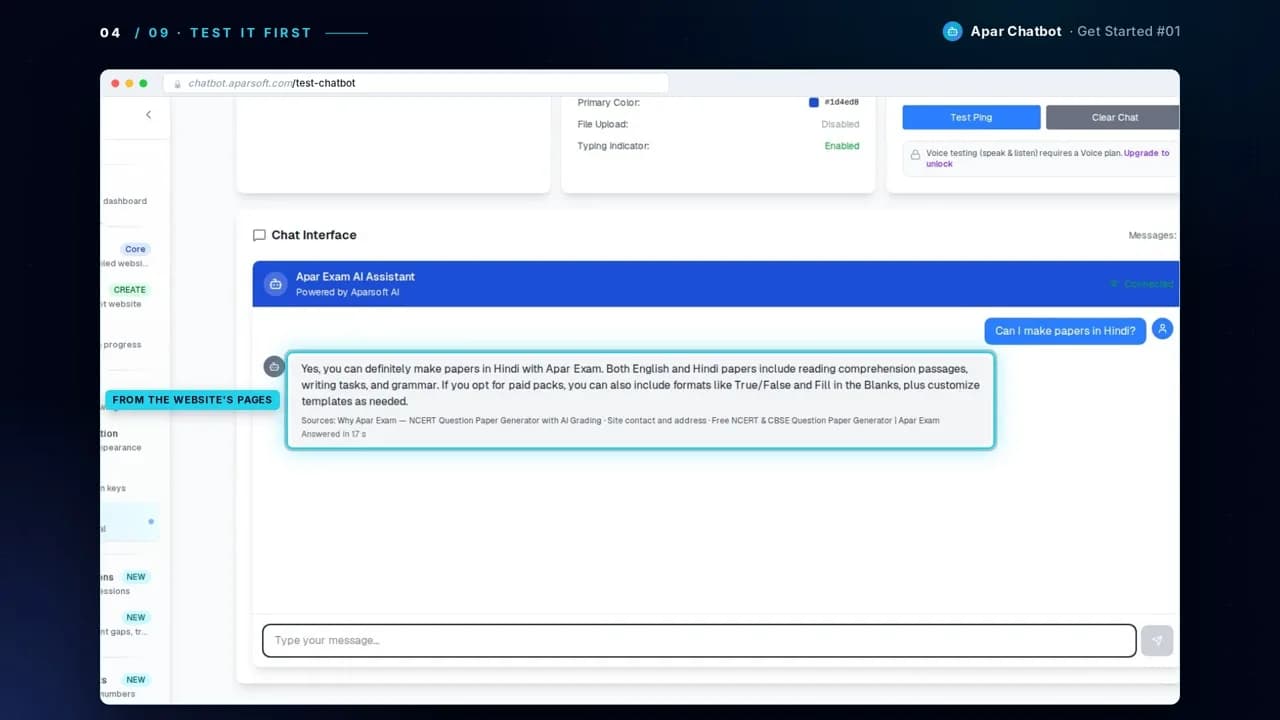
Open Test & Query and pick your website. Ask a question a visitor might ask. We asked whether you can make papers in Hindi with Apar Exam. The answer comes from the website's pages, and the sources underneath show which ones.
4Make it match your website
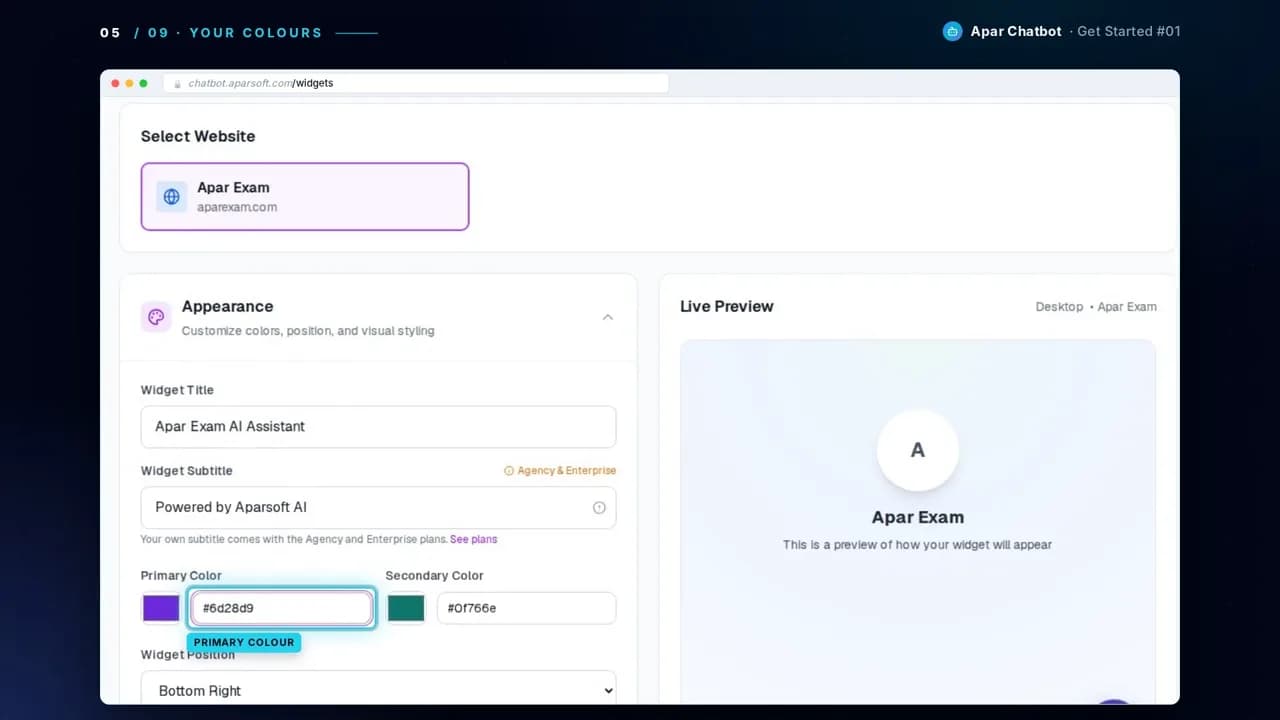
Open Widget Customization. Change the colour, and the title and position if you like, then press Save.
5Copy the code into your website
Open Embed Codes and pick your website. Copy the code, and paste it into your website's pages. aparexam.com already has it.
In detail: How to add a chatbot to your website with one HTML code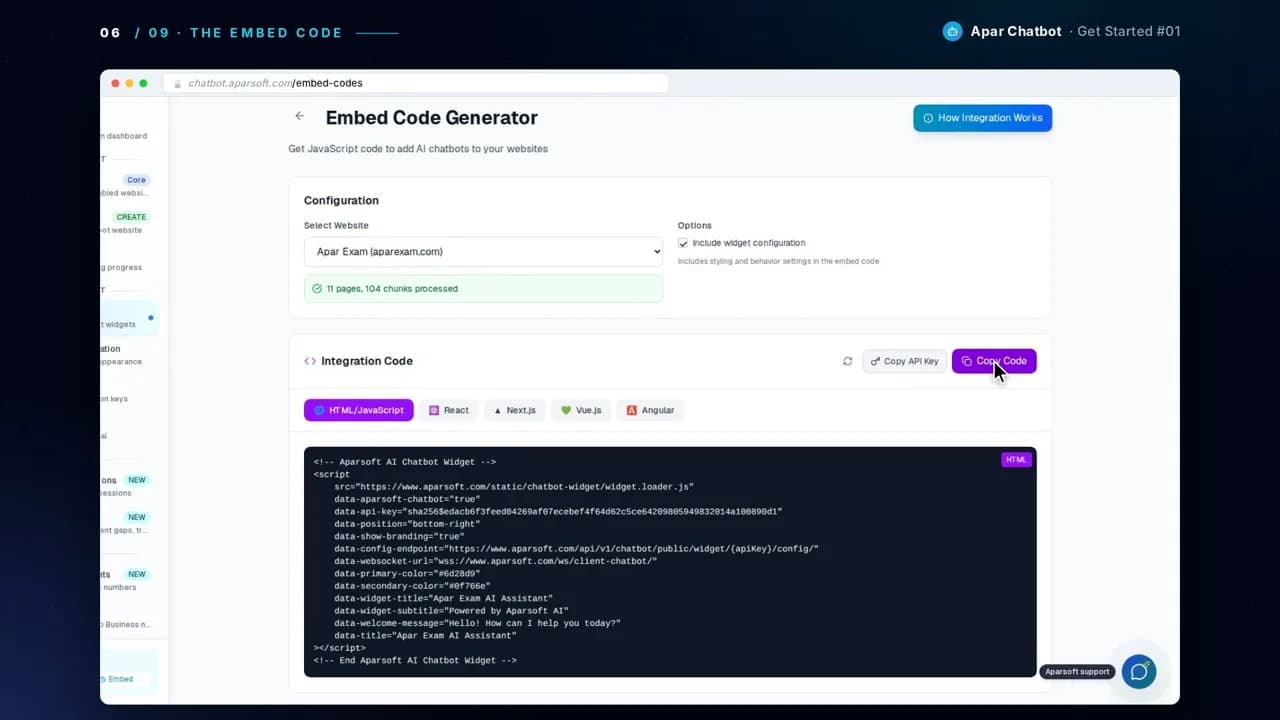
6A visitor asks
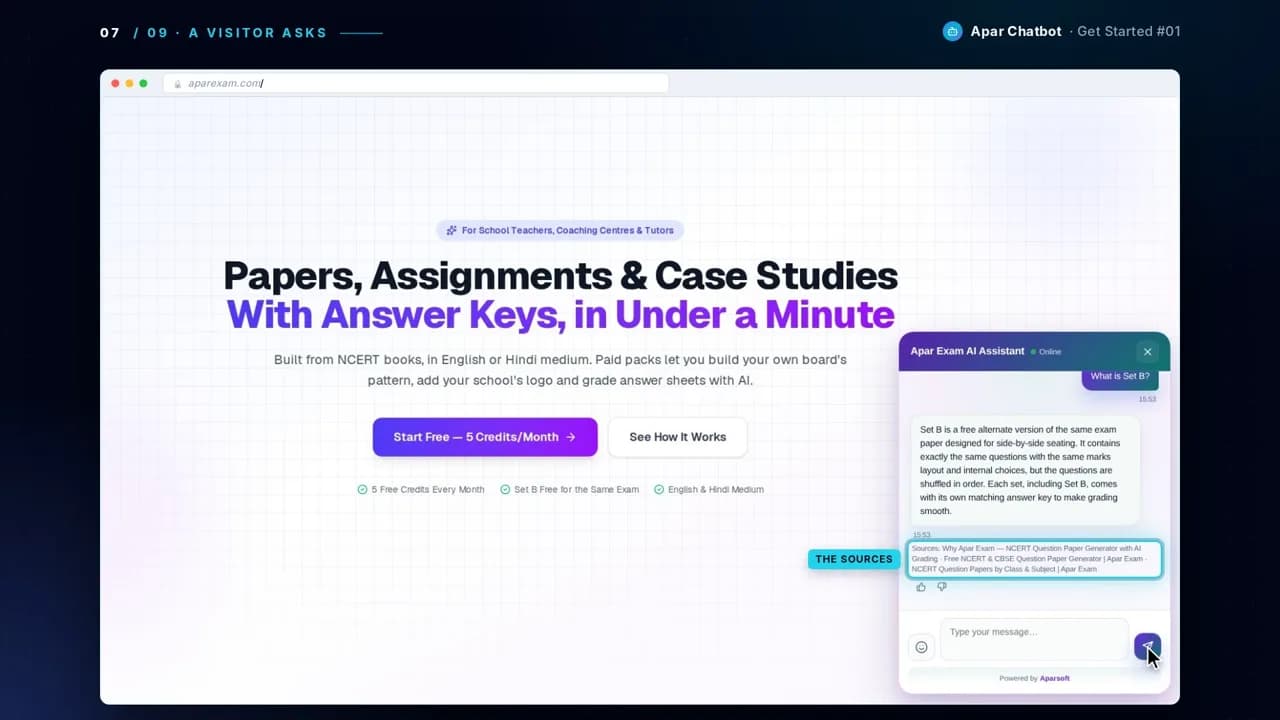
On aparexam.com, a visitor opens the chat and asks what Set B is. The answer comes from the website's own pages, and the sources sit right under it.
7Read every conversation
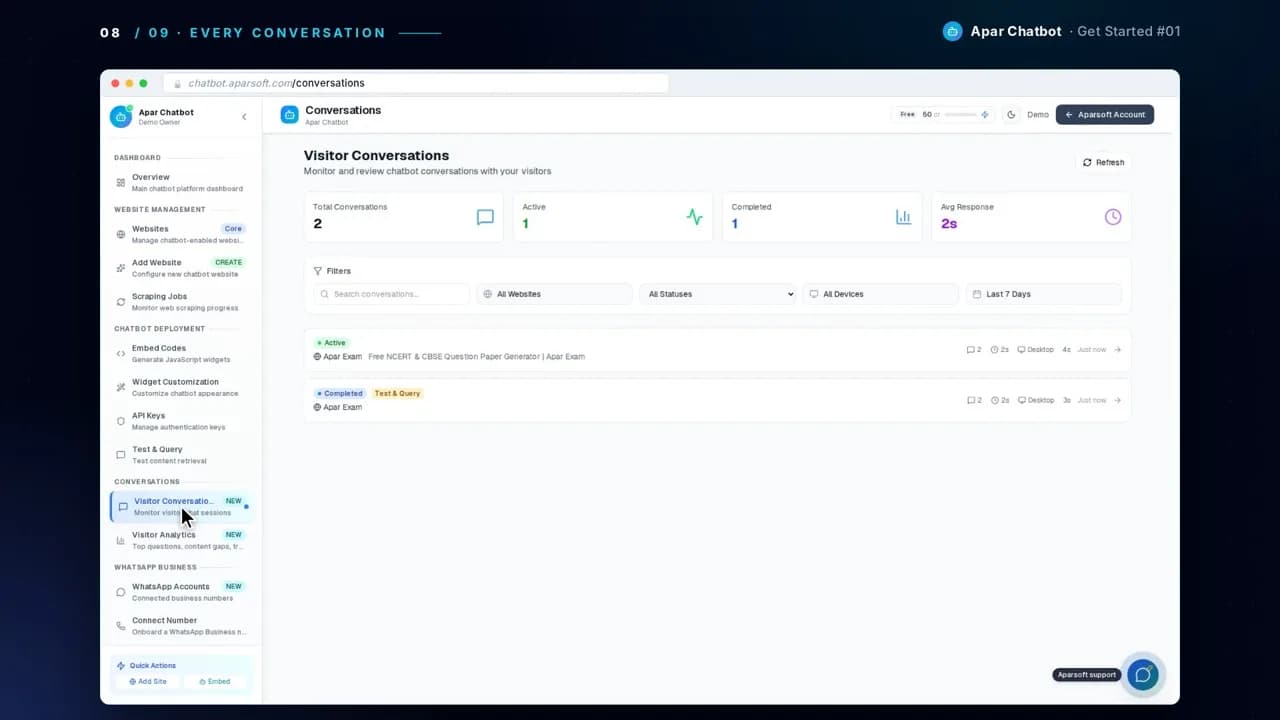
Back in the dashboard, Visitor Conversations lists every chat. Open one to read the whole conversation.
The answer in the video, word for word
A visitor on aparexam.com
What is Set B?
Sources: Why Apar Exam — NCERT Question Paper Generator with AI Grading · Free NCERT & CBSE Question Paper Generator | Apar Exam · NCERT Question Papers by Class & Subject | Apar Exam
Questions
Do I need to write code?
No. You copy one short piece of code from Embed Codes and paste it into your website's pages, the way you would add any other tag. The next guide shows where it goes.
Where do the answers come from?
From the pages it read on your website, and from any documents you add. Each answer shows its sources underneath, so you and your visitors can see where it came from.
What if my website doesn't have the answer?
It won't guess. The question then shows up in Visitor Analytics as a content gap, so you can add the answer to your website or upload a document with it.
Does it work on WordPress, Wix or Shopify?
Yes. Use the same code, and paste it where your site builder lets you add your own code to the footer of every page. Some builders allow this only on their paid plans.
Next guide
How to add a chatbot to your website with one HTML code